Official manual / App Store purchase

Shadowrocket Download from the App Store

Paid app · One-time purchase Download on the App Store

Shadowrocket is available only on the App Store and is primarily used on iPhone and iPad. Check the storefront region and verify the app before purchasing and completing system authorization.

  • DeveloperShadow Launch Technology Limited
  • App ID932747118
  • $2.99 one-time purchase · US storefront reference price
  • Universal for iPhone and iPad

Check the App Store page for the actual price, system requirements and universal purchase eligibility.

Storefront and account region

Shadowrocket isn’t available in the mainland China storefront. App Store content is determined by the country or region associated with your Apple ID—not just your device’s location, and not the language set on your device. The button on this page links to the US storefront product page. Opening it lets you view the app listing but doesn’t change the region of your purchase account.

First, check which account is currently signed in to the App Store. The Apple ID shown at the top of your device settings may differ from the account used for Media & Purchases. When checking a purchase, use the account that actually bought the app. If you’ve purchased it before, check that account’s purchase history to avoid mistaking an account mismatch for an unavailable app.

Where to check your country or region

Go to Settings → Apple ID → Media & Purchases → View Account → Country/Region to check the current setting. To change it, open the country or region change page from the same location and review Apple’s current requirements and prompts. The wording or location of these options may vary slightly by system version; follow the screens on your device.

Changing your region may involve requirements for your account balance, active subscriptions, Family Sharing and payment method. Resolve the items listed on the page before deciding whether to continue. Don’t rush through the process just to make the app appear in search results. Whether you can change the region depends on your account status and Apple’s requirements; this guide can’t guarantee a successful change.

If the product page opens but the purchase button says the app isn’t available in your region, check your account settings rather than repeatedly refreshing the page. The currency and amount on the purchase confirmation should also match the current storefront. If you’re unsure, note the exact message and check region, payment and device compatibility separately; each issue needs to be addressed according to its own prompt.

Verify the app / Three details must match

Shadowrocket How to verify the app

Searching by name can help you find the listing, but it doesn’t verify the app. On the product page, check the developer, official icon and app ID—in that order—before purchasing.

Check the details on the product page

Developer
Shadow Launch Technology Limited
Official icon
A rocket on white with a blue-violet outline, matching the official icon shown on this site.
App ID
932747118; the product page URL contains id932747118.

Check the full developer name, not just a few similar words. The app ID distinguishes different products. When names look alike, the number in the product page URL is more useful for identification than the listing’s search position.

Three risks to watch for with similarly named apps

  • Imitation iconThe artwork, background or outline differs from the official icon. Don’t rely on a similar silhouette alone.
  • Different developerThe name looks similar, but the developer isn’t the company listed above. Stop before confirming the purchase.
  • Different app IDIf the number in the product page URL differs, it isn’t the same app—even if the title includes Shadowrocket.

All three details should match. Screenshots help you recognize the official product page, but aren’t proof of identity on their own. Interface colors, language and layout can change with settings or app updates. A difference in one detail alone doesn’t prove an app is counterfeit, and a similar-looking screenshot isn’t a reason to skip checking the developer and app ID.

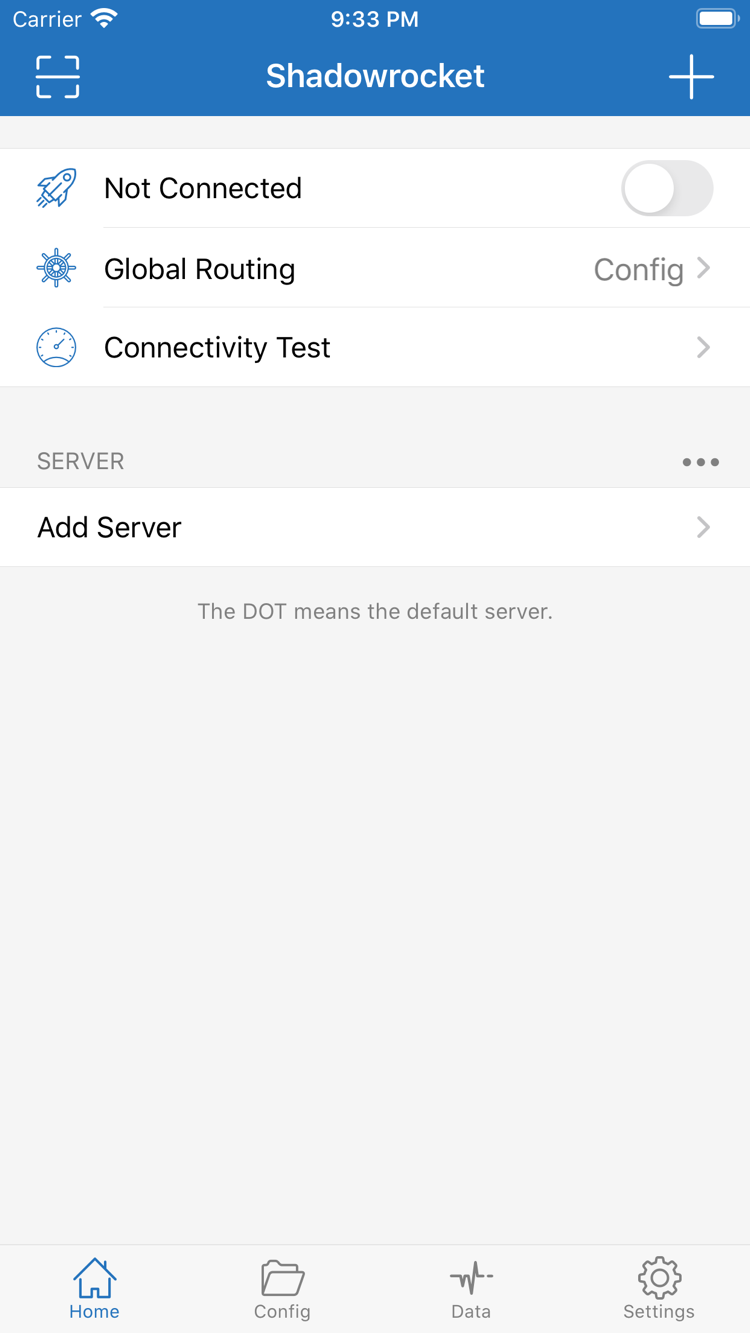
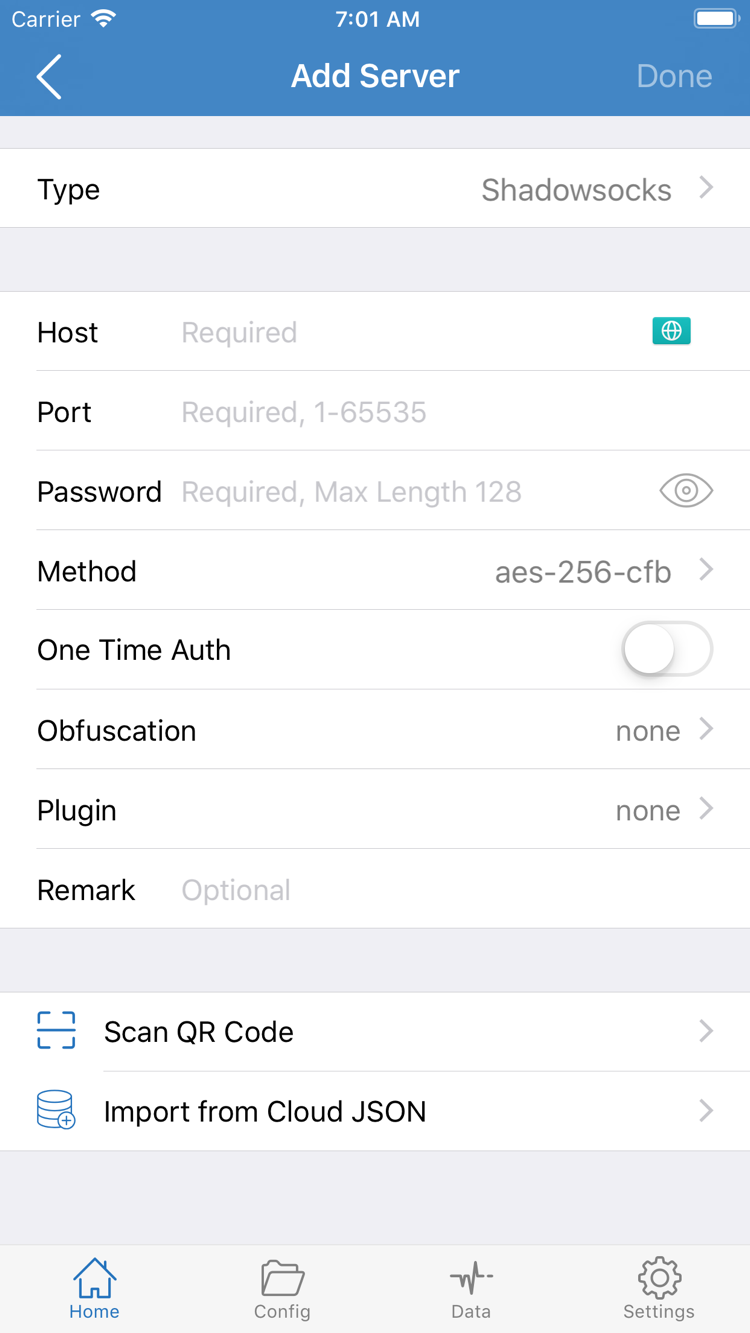
The two images on the right are official screenshots provided by the developer on the App Store. Home shows Not Connected, Global Routing, Connectivity Test and SERVER. Add Server shows fields such as Type, Host, Port, Password and Method. These screens can help you find your way around after installation, but buying the app doesn’t provide the server configuration shown in the screenshots.

Official Shadowrocket Home screenshot: Not Connected, Global Routing and Connectivity Test at the top, with SERVER and Add Server below
Home: Check connection status, Global Routing and your existing server list.
Official Shadowrocket Add Server screenshot: Type, Host, Port, Password and Method fields, plus Scan QR Code and Import from Cloud JSON
Add Server: Enter details for a server you already have or use an available import option.

Device guide / iPhone

Get Shadowrocket on iPhone and open it for the first time

On your iPhone, open the App Store link on this page and check the compatibility section on the product page. System requirements are as listed on the App Store page; make sure your device meets them before buying. If the store says your system is incompatible, first check whether a system update is available for your device. Don’t confuse a compatibility issue with an account region issue.

After verifying all three app details, check the button’s status: a price usually means you can start a purchase, a cloud icon usually means the account has a previous download, and Open means the app is installed. Check your account’s purchase history to confirm. Complete any authentication requested by the system, wait for the App Store installation to finish, then open the app from the Home Screen or tap Open in the store.

System authorization on first connection

Opening the app for the first time and making a connection for the first time are separate steps. First, import a subscription you already have on Home or enter your server details through Add Server. Select a server and Global Routing mode, then turn on the connection. The first time you connect, the system may ask to add a VPN configuration and require your device passcode or biometric authentication.

This prompt authorizes the client to create a system network configuration. It doesn’t mean a server connection has been established or fill in missing server details. Read and confirm it only if you’ve just initiated a connection in Shadowrocket. If you cancel, check your configuration and try again later. If the connection still fails, check the server address, port, protocol parameters and current network.

After turning on the connection, verify that access works as expected. Connectivity Test can help check whether the selected server responds, but a single test can’t confirm that every site is routed as intended. See the user guide for the full procedure. To organize subscriptions you already have, see the server management guide.
Device guide / iPad

Install on iPad with a universal purchase

Shadowrocket supports universal purchase for iPhone and iPad. Sign in with the Apple ID used to buy the app, then find your purchases in the App Store on a compatible iPad to download it again. Check the App Store page for system requirements and universal purchase eligibility. “Same account” means the account actually used to purchase the app in the App Store; don’t rely only on the name shown at the top of device settings.

An iPad’s wider screen may arrange lists and editing screens differently from the iPhone screenshots. Look for the interface labels Home, Add Server, Config and Settings rather than expecting buttons to be in exactly the same places as in a screenshot. Switching between portrait and landscape can also change how much is visible, but it doesn’t change what the server fields mean.

Purchase eligibility and connection settings are stored separately. Redownloading the app on another device doesn’t automatically restore all the servers, rules and certificates from your old device. After installation, import a subscription of your own or restore a configuration you’ve safely kept, then check the active Config and Global Routing mode. Don’t assume the new device is configured just because the old one was connected.

App Store availability on other Apple devices

The compatibility section of the same App Store product page lists Mac, Apple TV and Apple Vision. If you plan to use Shadowrocket on one of these devices, check the same product page on that device for compatibility, system requirements and universal purchase eligibility. These details are as stated on the App Store page. The first-run steps in this guide focus on iPhone and iPad; input methods and interface layouts may differ on other devices.

Purchases / Redownload

Restore after changing devices or reinstalling

Restoration involves two separate things: restoring your app purchase and restoring your personal connection configuration. The App Store purchase history handles the first; your own subscription details or a configuration you saved earlier are needed for the second. Keeping these separate helps avoid assuming that a fully installed app also restores all the settings from your old device.

Redownload the app with the original purchase account

  1. On your new device, open the App Store and go to your account. Make sure you’re signed in with the Apple ID originally used to buy Shadowrocket.
  2. Open Purchases and find Shadowrocket. Depending on your system version, this list may be under Apps or another account section; follow the options shown on your device.
  3. Verify the app details, then tap the redownload icon. Redownloading an app with the account used for the original purchase usually doesn’t require another payment.
  4. When installation is complete, open Home and import a subscription or server details you already have. Check Config and connection authorization before using the app.

If you still see a price, don’t rush to confirm another payment. First check the App Store account, then review its purchase history to confirm that the original purchase went through and that the app is available in the current storefront. Having used the app on a device doesn’t necessarily prove that the currently signed-in account owns the purchase; checking the record is more reliable than relying on memory.

Save what you’ll need before changing devices

While the old device is still available, make sure you can retrieve a subscription you already have or have safely backed up any servers and configurations you want to keep. Treat subscription links, server passwords and other authentication details as sensitive. Don’t post them publicly or send complete screenshots to people who don’t need them. Decide whether to erase the old device only after confirming that the new one connects successfully.

After restoring a configuration, check the selected server, rule files and On Demand settings. Referenced items in an old configuration may have changed; successfully restoring the file doesn’t mean every server is still available. Verify a basic connection first, then restore automatic behavior such as on-demand connections to make it easier to pinpoint any failure.

For Family Sharing, check the product page’s support information and the sharing eligibility shown in your account. Follow the App Store page for current eligibility. Don’t assume the app is available to your account just because another family member bought it, and don’t confuse Family Sharing with syncing personal configurations.

Pricing / What the purchase covers

Price and one-time purchase

Shadowrocket is a paid commercial app. The US storefront reference price is $2.99, paid once for use of the client; there’s no monthly app purchase fee. Other storefronts show prices in local currencies. Check the App Store product page and purchase confirmation for the actual price, taxes and final amount. The reference price on this page isn’t a fixed promise for every region.

The one-time app purchase covers the right to use the client, not server capacity, connection time or guaranteed service availability. The validity and status of a subscription you already have depend on the service it belongs to; buying the app on the App Store doesn’t extend them. If Home has no available servers, import your own configuration instead of purchasing the client again.

App updates are delivered through the App Store. Check the updates list in your account or use automatic updates according to your preferences. For system requirements, compatibility and update details, see the current product page; this guide doesn’t list version numbers that can quickly become outdated. Back up important configurations before making changes. If anything behaves differently after an update, first check your current configuration and the exact message shown.

Handle payment issues separately from connection issues. If payment hasn’t completed, check the billing message in the store. If the app opens but can’t connect, focus on imported details, the selected server, rules and network status. Keeping a record of the screen and message where the issue occurred is more useful than changing your account, system and every configuration at once.

Before and after purchase / Quick reference

Shadowrocket download FAQs

First identify whether the problem occurs in the store, during installation or while connecting, then check the relevant guidance.

Why can’t I find Shadowrocket in the App Store?

Shadowrocket isn’t available in the mainland China storefront. App Store content depends on the country or region associated with your Apple ID. Check the account used for Media & Purchases and its country or region. Opening the product page won’t change your account’s region; changing it is subject to Apple’s stated requirements.

The product page opens, but the download won’t complete. What should I check?

Read the specific App Store message first, then check your account region, device compatibility, payment status, available storage and network connection. Follow the store’s instructions for billing or purchase restrictions; repeatedly tapping the purchase button won’t resolve the underlying issue.

Do I have to buy it again after changing devices or reinstalling?

Sign in with the Apple ID used for the original purchase, find Shadowrocket in your App Store account’s purchase history, and download it again. You usually won’t need to pay again. If a price appears, check the account and purchase history before confirming another payment.

Can I use the same purchase on my iPad?

The purchase is universal for iPhone and iPad. Sign in with the Apple ID used to buy the app and redownload it on a compatible iPad. Check the App Store page for system requirements and universal purchase eligibility. Import or restore your server configuration separately on each device.

Can I install it on Mac, Apple TV or Apple Vision?

The compatibility section of the same App Store product page lists Mac, Apple TV and Apple Vision. Check the page on your target device. Device availability, system requirements and universal purchase eligibility are as stated on the App Store page.

The interface is in English. Which items should I learn first?

Start with Home, Add Server, Global Routing and Config. Home shows connection status and servers; Add Server is for entering an existing server; Global Routing selects a routing mode; and Config manages configurations. The interface language shown in a screenshot doesn’t establish whether an app is genuine.

After purchasing and installing the app, continue with the user guide, or troubleshoot by symptom in the FAQs.